You do not need a fax machine to send a fax anymore. For many people, the real job is simple: send one PDF to a government office, clinic, insurer, bank, school, or legal contact that still asks for a fax number.
This guide explains the modern online fax flow, what to prepare before you send, and how to avoid signing up for a monthly plan when you only need to send a document once.
The short version
To send a fax online, you usually need three things:
- A PDF version of the document
- The destination fax number, including country code if it is international
- A payment method or credits for the pages you send
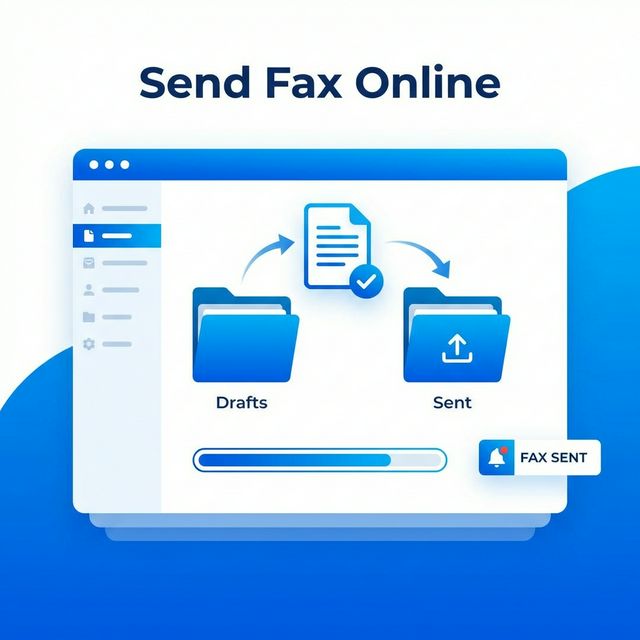
With Send Fax Online, you upload a PDF, choose the destination country, enter the fax number, review the required credits, and queue the fax for delivery.
Why people still need fax
Fax is still used by some industries because it creates a familiar delivery trail and works with older office systems. You may run into fax requirements for:
- Medical forms and insurance requests
- Legal or real estate documents
- Government applications
- School or employment paperwork
- Bank, loan, or authorization forms
That does not mean you need to buy hardware or maintain a phone line. Online fax services bridge the gap by sending your uploaded document through a fax provider.
Step-by-step: send a fax online
1. Save your document as a PDF
PDF is the safest format because it preserves layout, signatures, and page breaks. If your document is a Word file or image, export or print it to PDF before uploading.
Before sending, open the PDF and check:
- Every page is readable
- Signatures or initials are visible
- The file is not password-protected
- The file size is within the upload limit
2. Enter the destination fax number
Choose the country first, then type the local fax number. For US and Canada numbers, this usually means a 10-digit number. For international numbers, check the recipient's preferred format.
Do not guess a fax number from a phone number. If the recipient gave you a separate fax number, use that exact number.
3. Review page count and cost
Online fax services usually charge by page or by credits. Review the page count before sending so there are no surprises.
On Send Fax Online, each PDF page uses 10 credits. Credit packs start at $4.99, and there is no monthly subscription.
4. Queue the fax and track status
After you submit the fax, delivery is not always instant. The receiving fax line may be busy, unavailable, or slow to answer. A good online fax service should show status such as queued, sending, delivered, or failed.
Keep the delivery result for your records, especially if the fax is tied to a deadline.
Do you need a subscription?
Not always. A subscription makes sense if you send and receive faxes every month or need your own incoming fax number.
If you only need to send one document, a pay-per-fax service is usually a better fit. You pay for the send, avoid monthly billing, and do not need to remember to cancel a plan later.
Common mistakes to avoid
- Uploading a photo when the service only supports PDF
- Sending to a voice phone number instead of a fax number
- Forgetting the destination country code
- Waiting until the last minute for a deadline
- Assuming "submitted" always means "delivered"
FAQ
Can I send a fax from my phone?
Yes. If your PDF is on your phone, you can upload it from a mobile browser and enter the fax number there.
Can I send Word documents or images?
Direct sending currently works best with PDF. Convert Word documents or images to PDF before uploading.
How much does online fax cost?
It depends on the service and page count. Send Fax Online uses 10 credits per PDF page, with credit packs starting at $4.99.
Is online fax instant?
Submitting the fax is quick, but final delivery depends on the recipient's fax line. Always check the final status.